November 2, 2026
A Brain of One's Own
Building an open-source, AI-powered, second brain
I have recently set up a second brain using open-source tools. There's a feel-good factor to building it yourself, and it's also extremely cheap compared to other alternatives. Here's how much I spend on it a month:
- Note synchronization: a few cents a month
- AI inference to work on my notes: a few euros a month
To develop the second brain, I wanted tools that will still exist for a long time. For me, that means using open-source tools and Markdown notes. Apps are replaceable, but the notes are not.
Building blocks
My main note-taking app is Joplin, which has desktop and mobile versions. The Joplin desktop app also offers an MCP service to expose notes to any local AI agent.
To interact with the notes I use OpenCode desktop, an open-source alternative to Claude Code that works with many AI providers.
My preferred AI inference provider is Tensorix. It provides the latest open-weight models, which are very capable and cost a fraction of the frontier labs.
I use an S3-compatible object storage service to synchronize the notes between devices. I use Infomaniak's S3 service, located in Switzerland and with a minimal environmental footprint. With Joplin's end-to-end encryption enabled, even the storage provider can't read the notes.
Setting up S3 synchronization
Creating a Tensorix account, linking it to Joplin and OpenCode, and connecting OpenCode to Joplin MCP is easy. But setting up the Joplin synchronization using Infomaniak's services is not obvious if you're not familiar with OpenStack.
The steps are the following:
- Create a Cloud Computing project.
- Download the OpenStackRC file from Infomaniak's console (e.g.
PROJECT-ID-openrc.txt). This file will allow you to manage your bucket from your machine. - Access the "Horizon" manager. This is the interface to manage your OpenStack project.
- Create an "Object Store" container, ensuring that it is not publicly accessible.
- Install
openstacklocally on your machine, perhaps usinghomebrewif you use a Mac. - Source the file:
source PROJECT-ID-openrc.txt - Create credentials:
openstack ec2 credentials create - This will return a few fields, make sure to store them safely. The
important ones for S3 synchronization are:
accesssecret
You can now set Joplin (both desktop and mobile) S3 configuration using these fields:
S3 Bucket: <bucket name>
S3 URL: https://s3.pub2.infomaniak.cloud
S3 Region: us-east-1
S3 access key: <access>
S3 secret key: <secret>
Force path style: True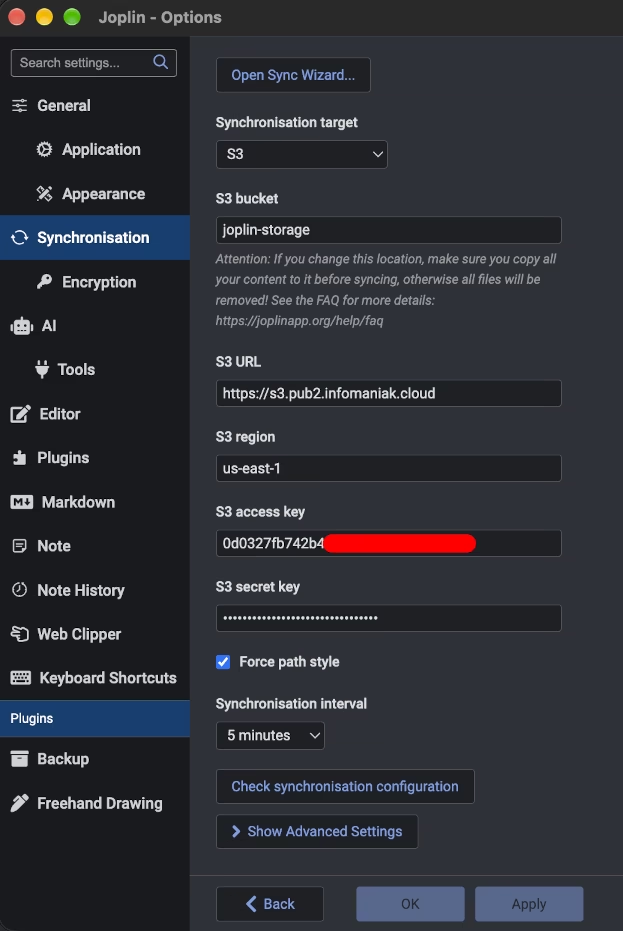
Conclusion
You can set up your cross-device, open-source, and AI-powered second brain in a couple of hours. With the help of AI, this is now possible for people with low technical knowledge and a bit of patience.